How to Use Block Blast Solver
Follow this step-by-step guide to get the best results from our solver
How to Take the Perfect Screenshot
Quick screenshot checklist
Use this before uploading. It reduces recognition errors and keeps users from restarting the flow.
- Full 8 x 8 board is visible
- All three available blocks are visible
- No pop-ups, score overlays, or crop marks
- Use manual correction if one tile looks wrong
Step 1: Position Your Game
Make sure your game screen shows:
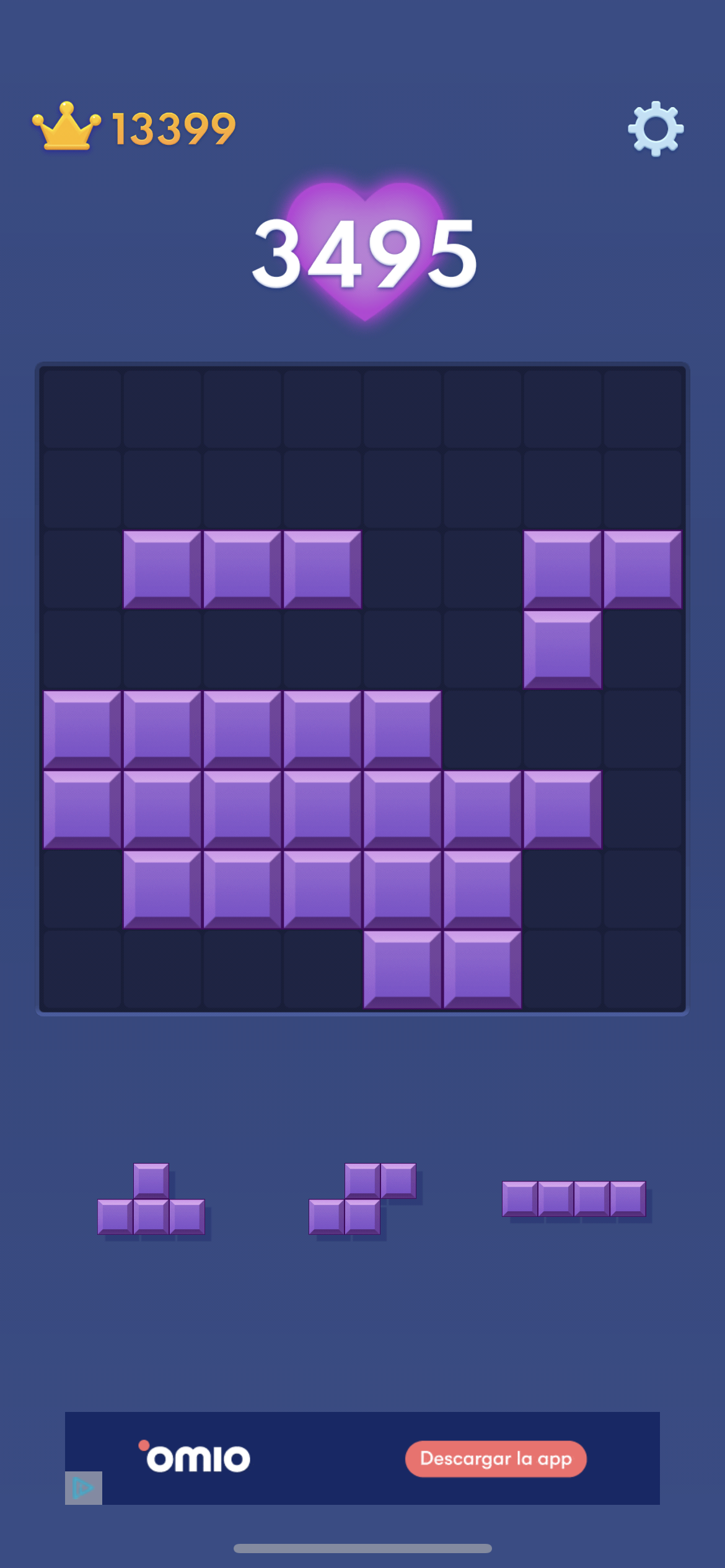
Example of a properly positioned game screen
-
✓
The complete game grid
-
✓
All three figures at the bottom
-
✓
No pop-ups or overlays
Step 2: Take the Screenshot
For iPhone:
-
1.
Press the Side button and Volume Up button simultaneously
-
2.
Your screen will flash white
-
3.
The screenshot will be saved to your Photos
For Android:
-
1.
Press the Power and Volume Down buttons simultaneously
-
2.
Or swipe three fingers down on your screen
-
3.
The screenshot will be saved to your Gallery
Common Mistakes to Avoid
❌ Don't:
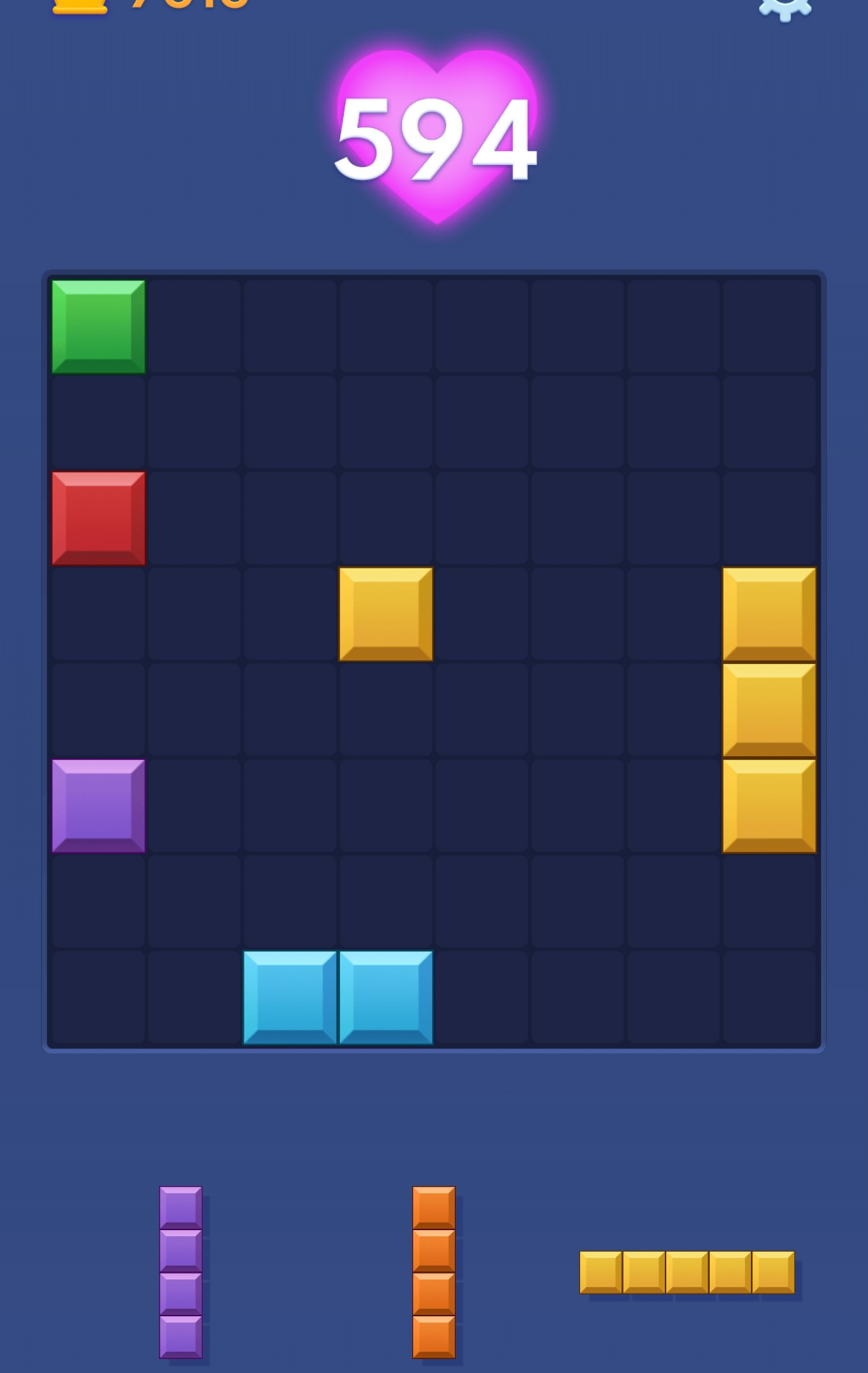
Example of an incorrect screenshot (cropped/incomplete)
-
•
Crop the screenshot
-
•
Take screenshot with pop-ups visible
-
•
Include any overlays or effects
-
•
Use photos taken by other phone
✓ Do:
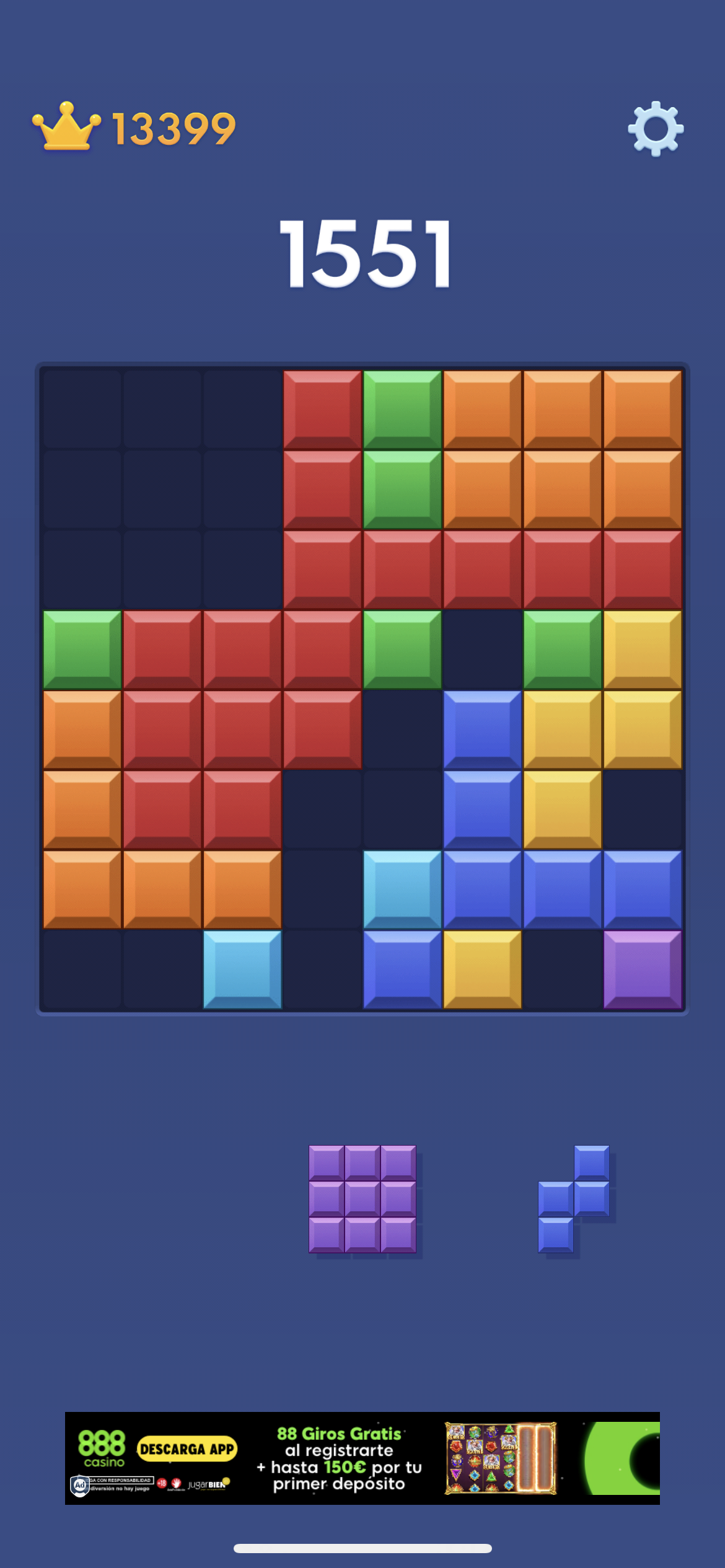
Example of a correct screenshot (full screen)
-
•
Use full-screen screenshots
-
•
Keep the screen clean
-
•
Wait for animations to complete
Report Incorrect Analysis
If you followed all guidelines correctly but received an incorrect analysis, please help us improve:
Leave feedback at the bottom of the solution page with the tag [WRONG] and we'll investigate and fix the issue.